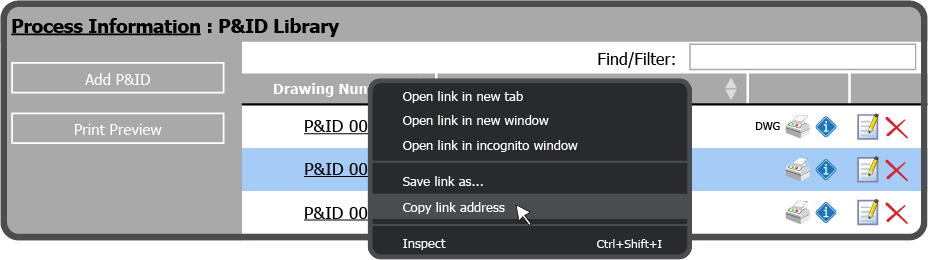
To link to a file or folder in a different section of the APSM Portal, first you need to get the link for the File/Folder you want to link to. To do this navigate to this File/Folder in APSM Portal, right click on the File/Folder and select Copy link address.
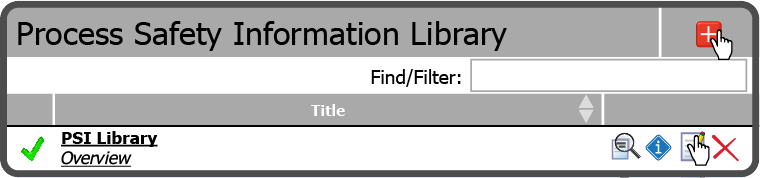
Now that you have the Link copied, navigate to the PSI Library. Select the Add Button  at the top of the PSI Library, or select the Edit Icon
  to the right of the Item you want to edit.
Next, select Link to a different section and paste the link address of the Item you want to use in the Link to a different section field. Then select the Save Button  .
.

Now when you select that Item in the PSI Library, it will take you to the location of the link in APSM Portal.
 Related Topics